How it works
From a GEDCOM export to a printed chart or a book draft, step by step.
Export a GEDCOM file from your program
Every genealogy program and website can export a .ged file. Choose UTF-8 encoding if you are asked, and decide whether living people should be included. Our guide covers Ancestry, MyHeritage, FamilySearch, Family Tree Maker, Gramps and RootsMagic.
Upload the file
Drag the file onto the upload area. You see a summary of the file: the number of people and families, the date range, and warnings about anything that will affect the chart, such as children listed in two families or people without a recorded sex.
Choose the person and the chart
Search for the person at the centre of the chart. Pick hourglass, pedigree, descendants or all relatives, the number of generations up and down, whether spouses are drawn, and how deep the lines of uncles, aunts and cousins go.
Check the preview
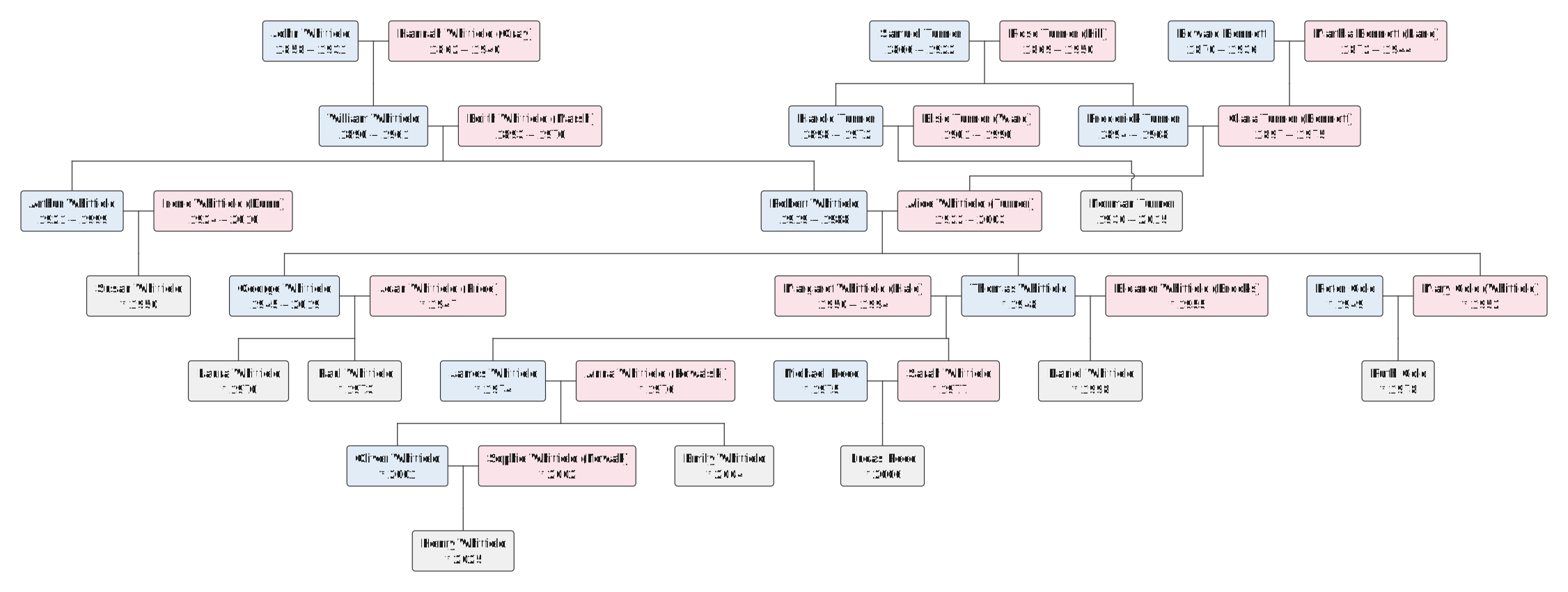
The chart is laid out in seconds. Zoom in on the preview, look for surprises in the data (a dashed box means a person appears in two places; a child under one parent means the other parent is missing), and adjust the labels and the style.
Download and print
Export a PDF in the paper size of your print shop, an SVG for a poster of any size, or a PNG for the family. Our printing guide explains paper sizes and resolution.
Generate a book draft
From the same file, generate a family history book: chapters per generation, charts, family entries, footnotes and an index. Download the PDF, or the editable document, and add the stories that only you know.
Be first to try PrintFamilyTree
Leave your e-mail address and we will tell you when the service opens. No spam, one message at launch.
Get notified at launch